Play Audio – WTAM 1100 Newsradio – Tech Tuesday – July 22nd, 2014
If you use your smartphone with your business, the recent news stories of IBM’s partnership with Apple may have piqued your interest.
IBM and Apple started out as rivals for the PC market in the very early 80s before it became Mac vs Windows. While IBM left the personal computer space over the next few decades, they continued to be a very important player in enterprise environments.
In the last 7 years, smartphones and tablets have become one of the fastest growing markets for what are really still personal computers. However, even though we’re more likely to turn to a smartphone to check our personal email, or use a tablet to surf the web, the support for these devices in a corporate environment is still a huge area of growth opportunity.
With Apple’s strength being consumer hardware and IBM still being a well-known enterprise systems developer, you’re likely to see a much more robust approach to helping companies supply, manage and support devices like iPhones and iPads.
When you’re dealing with hundreds or thousands or even tens of thousands of corporate employees, often across different locations and even time zones, the ability to manage user accounts and access from those highly-mobile devices can be a nightmare for your company’s IT department.
Play Audio – WTAM 1100 Newsradio – Tech Tuesday – August 26th, 2014
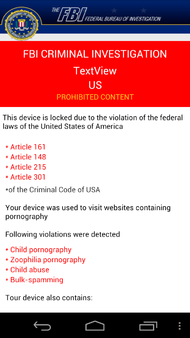
According to a recent New York Times article, Android devices are a new target for “ransomware”. These malicious software apps act similarly to the fake FBI virus scams that have been attacking Windows PCs for years.
Fortunately, there’s several actions you can take to help protect your Android smartphone or device from these scammers and their malware apps.
Stick With Trusted App Sources
Android devices generally come setup for downloading apps from a trusted app store, like the Google Play Store. For extra security, you’ll want to avoid changing the settings on your device that allow 3rd party apps to be downloaded from the official app stores.
Sometimes called “sideloading”, allowing apps to be installed from less trustworthy places on the Internet increases your chances of accidently loading malware onto your device.
Keep Updated
Just like your computer, your smartphone’s operating system and apps need to be updated periodically. It’s important to keep watch for system update notifications as they come up. You can also check for system updates by visiting Settings, then About (or About Phone), followed by System Updates.
For app updates, visit the Google Play Store app, then the Play Store icon. Select My Apps to view your downloaded apps and any available updates. You can also touch the Menu button to check the “Auto-update” option to keep that app automatically up to date.
Practice Safe Internet Habits
A common attack method, known as “phishing” on the Internet, isn’t technical, it’s psychological. Scammers will create fake websites, pretending to be your bank or shopping site. They’ll send you emails asking you to sign in and provide your account information, which they’ll then use to access your account on the real sites.
Some malware attacks come in the form of banner ads designed to look like a security warning telling you viruses have been detected. The error will ask you to download and run what it claims is an antivirus app, but is really the scammer’s software waiting to load onto your device.
The same safe Internet habits you follow on your computer work on your mobile devices as well. If you do find yourself falling victim to one of these attempts, here is what to do if you are scammed.
Security Software
The rapid growth in the number of Android devices being used worldwide has made the platfom a growing target for malicious software makers. Keeping your settings in check, your system updated and avoiding unsafe behavior will often be the most powerful ways to protect your device. To help take your protection further, security software makers have made a range of protection products for the Android platform.
The good news is that many of the major security software suites, like Webroot’s SecureAnywhere Internet Security include Android security apps that you can install on your device in addition to their Windows PC or Mac coverage.
If you still have questions on how to best protect your Android device, or need help with a potential malware issue like viruses or spyware, speak to a Geek Squad Agent online at geeksquad.com/chat or at the Geek Squad Precinct located at your nearby Best Buy.
The Apollo Guidance Computer (AGC) was an amazing piece of technology for its time. At 12:16 PM EDT, on July 16th, 1969, the Apollo 11 spacecraft began its translunar injection burn to leave its 115 mile-high Earth-orbit thanks to this navigation computer.
The AGC operated at 1.024 MHz, or one-million cycles per second, to help multitask 8 jobs, all with 2 kilobytes of memory.
You can try out the AGC yourself with the simulator found at here.
Your modern smartphone likely has a CPU designed to run at 2 GHz, or a billion cycles per second, and will often have 2 gigabytes of memory.
That said, comparing it to the modern smartphone isn’t really fair considering the AGC was a specialized computer designed to perform in a high-stress environment.
The Apollo Guidance Computer helped to take a spacecraft over 225 thousand miles to the Moon. Thanks to the efforts of the early space pioneers, your smartphone now uses an orbiting network of 24 GPS satellites.
Play Audio – WTAM 1100 Newsradio – Tech Tuesday – July 1st, 2014
The connected home is getting more connected at Best Buy thanks to a new developer toolkit announced by Nest Labs ahead of last week’s Google I/O conference.
The Nest programmer’s kit will help “smart devices” from other companies interact with both current and future Nest smart home devices. Several companies, including Chamberlain, Jawbone and others have announced they will be building support for the Nest API into their existing and future products.
Nest has two devices available today at your local Best Buy:
Nest Learning Thermostat – This smart device replaces your regular thermostat and connects to your home’s WiFi network to allow you to control your heating or cooling through any compatible smartphone or tablet, even while away from home. As you adjust the temperature to fit your needs, the device learns about your preferences and creates an automatic schedule for your heat or AC that can be customized for your tastes. The Nest Learning Thermostat also helps conserve energy by adjusting it’s temperature to be efficient while you’re away, and notifies you when an adjustment can help with energy conservation.
Nest Protect – This WiFi connected device monitors for smoke and carbon monoxide, and can help alert your family through voice alarms and warning messages sent directly to your smartphone or tablet. Combined with apps like IFTTT, any warnings of smoke or carbon monoxide can be sent via SMS to a friend or neighbor to help them check on your family and home.
Examples of Nest compatible devices that are available at your local Best Buy include:
Chamberlain MyQ Garage – This universal device works with your existing garage door opener to allow you to control your garage door anywhere using its built-in WiFi capabilities and an app on your smartphone. With the upcoming Nest support, the MyQ app will allow control of the home temperature settings, and the company hopes in the future to have the MyQ alert the Nest Learning Thermostat when you’ve left the house to help keep your heating and cooling as efficient as possible.
Harmony Ultimate Remote – This Logitech programmable remote already can control up to 15 devices with a touchscreen interface, but the company wants to allow you to control your heating and cooling from the couch as well.
Jawbone UP24 – This wearable fitness band helps to monitor your movement to give you an accurate view of your daily exercise and calories burned. It also can help you monitor your sleeping patterns to get the best rest possible. With that technology, Jawbone hopes to have the device help alert the Nest Thermostat when you’re waking up, so that it can switch from an energy efficient mode to set the temperature just the way you want it when you get out of bed.
The connected home of tomorrow is already getting very communicative today!

 If you use your smartphone with your business, the recent news stories of IBM’s partnership with Apple may have piqued your interest.
  According to a recent